DesignCad
v4.7
- Started
- What's New V.4.7
- Getting Started
- Home Screen
- Dxf Send/Receive
- Model Design
- Point Operations
- Grading
- Pieces Operations
- Plot Piece
- Print Piece
- Measurement
- Sewing Processes
- Dart/Pleat Operations
- Internal Shape / Internal Point
- Marker Operations
- Marker Print
- Super Marker
- Technical Card Operations
- Cost
- Plot Marker
- Options
Point Align/Lap/Round
Align Points
To align points along the X or Y axis:
- Click the Align Points
 option from the Point menu.
 - Select the first point that will remain fixed on the part.
- Then, select the second point that will be moved to align with the first point.
- Press the Enter key on the keyboard.
The second point will be aligned with the first point either along the X or Y axis.
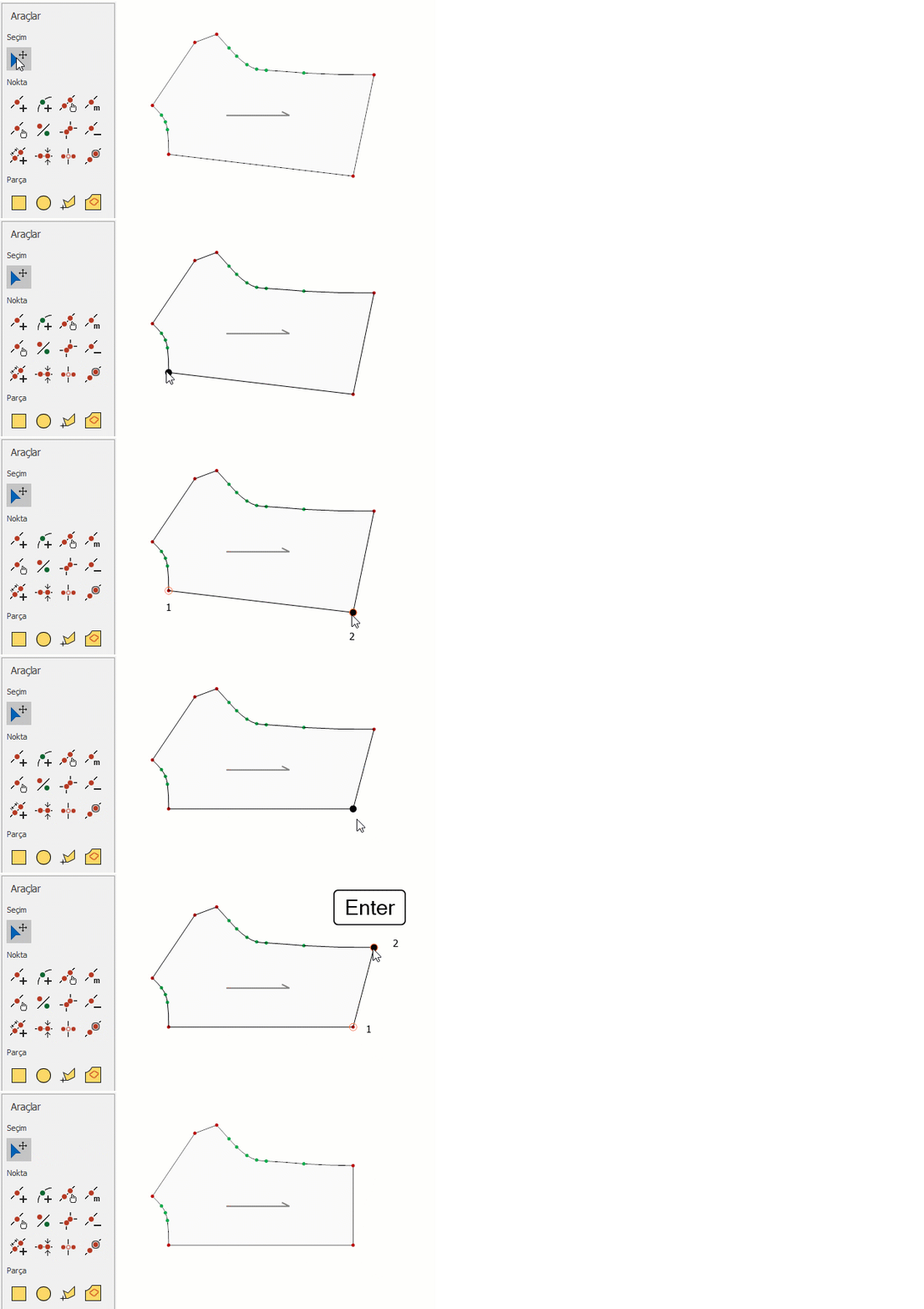
Align Points (Overlap)
This feature is used to align two selected points from different parts on top of each other.
- In the Mold Design screen, click on the Align Points (Overlap)
 option in the Point menu.
 - Select the two points from different parts that you want to align (first point and second point).
- When you click on the second point, the first point will be moved on top of the second point.
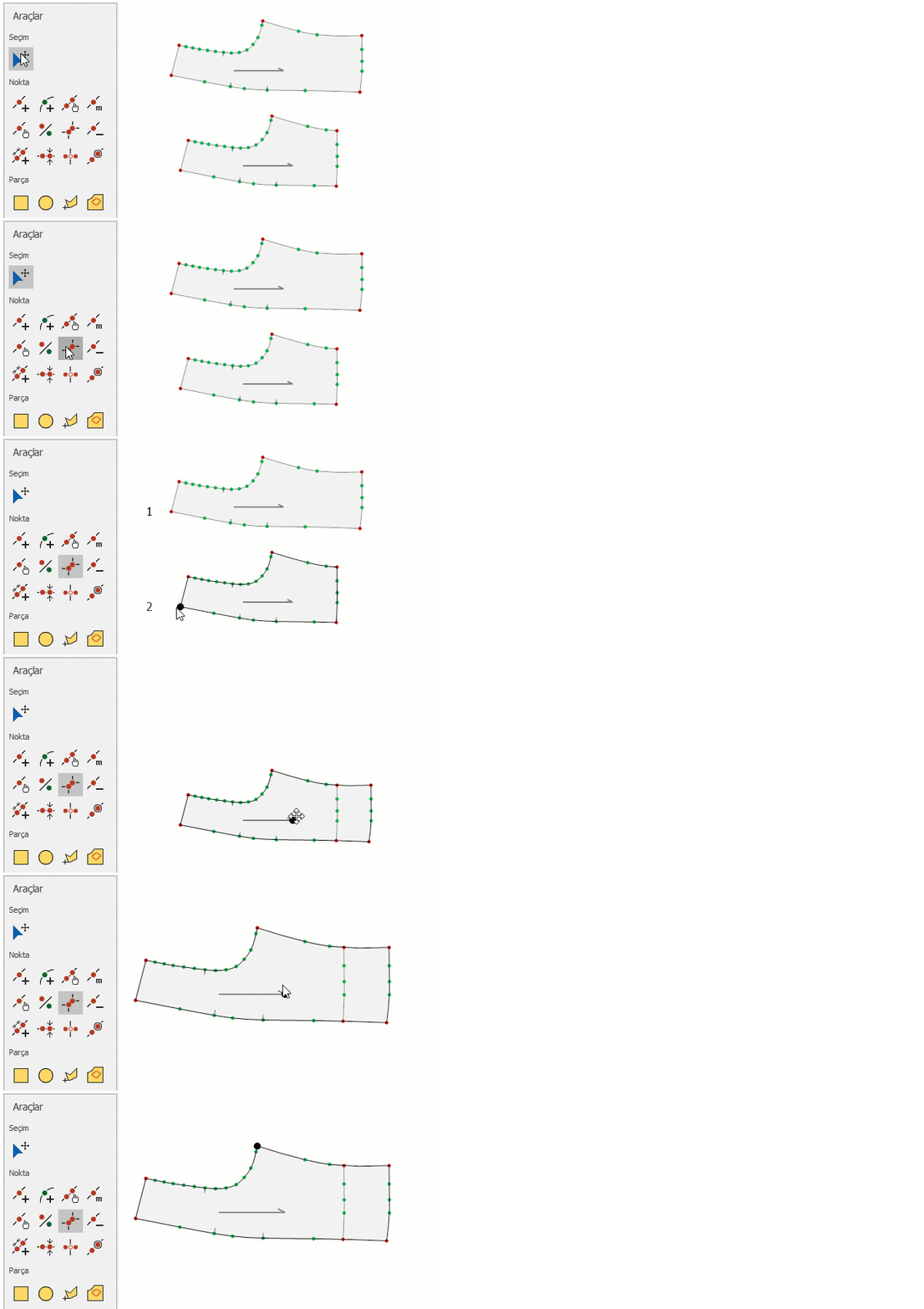
Round Corner
This function is used to round one or multiple corner points on the Pattern Design screen.
- On the Pattern Design screen, select Round Corner from the Point menu.
- Select the corner points to be rounded using the mouse.
- Press the right mouse button or Enter to open the Round Corner dialog box.
- Enter the radius value and the number of points required for the specified radius. Click OK to confirm.
© 2026 DesignCad