DXF/Aama HPGL PLT Import
To import DXF patterns prepared in other CAD software, as well as HPGL and PLT files, into DesignCad, follow these steps:
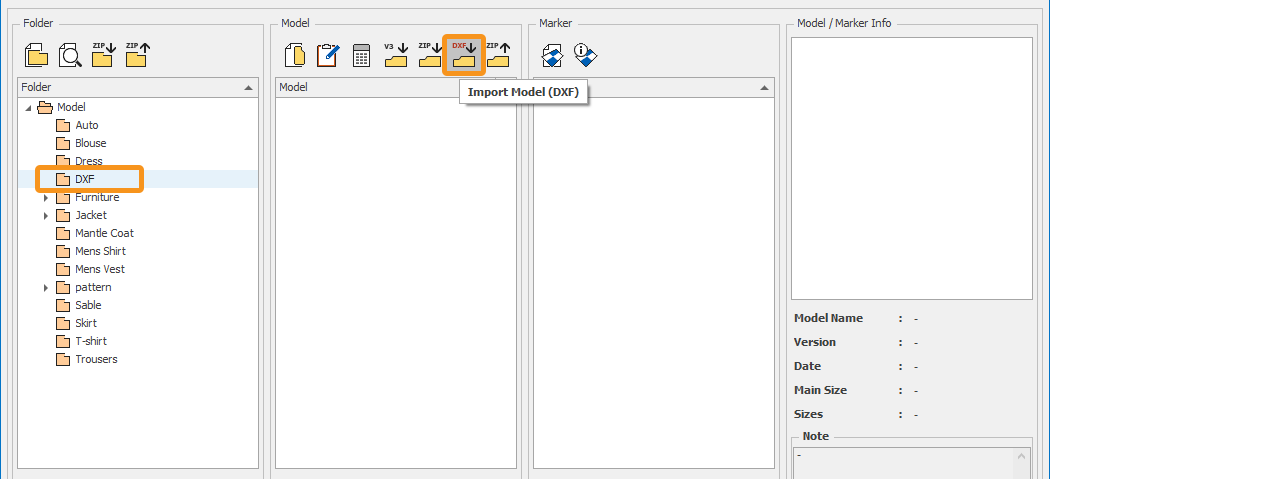
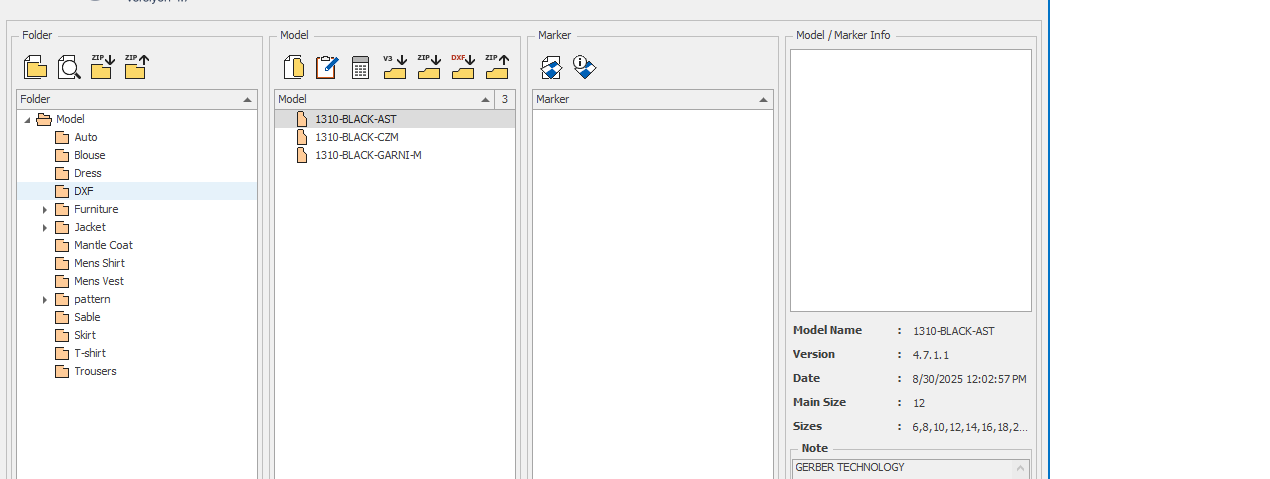
1.) On the main screen, select the folder into which the DXF file will be imported. If the folder does not exist, you can create one by clicking the New Folder button.
2.) In the Model column, click the Import Model (DXF)  icon.
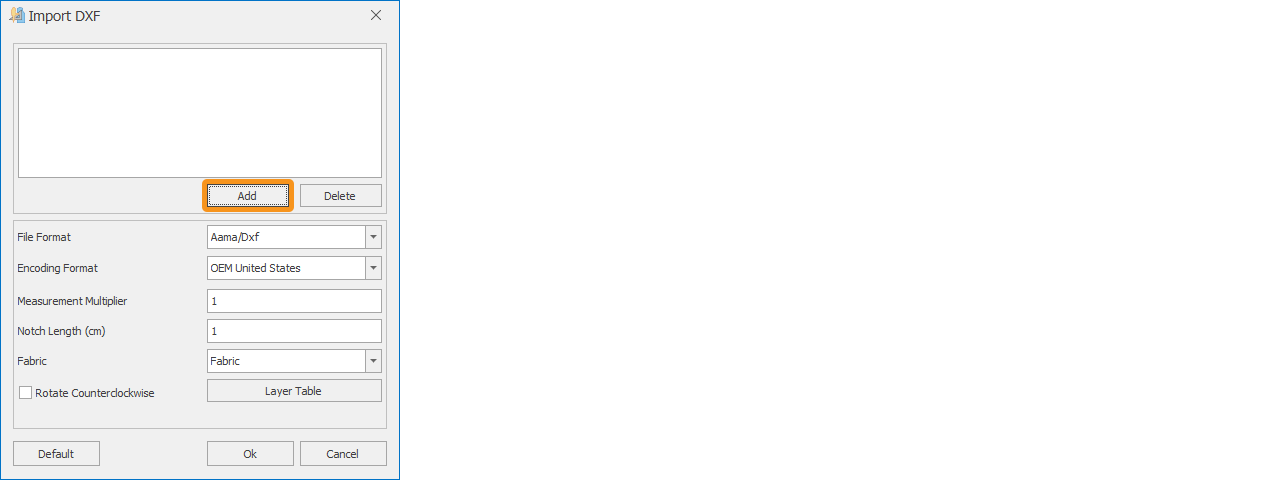
3.) When the Import DXF window opens, click the Add button and select the DXF file to import in the window that opens.
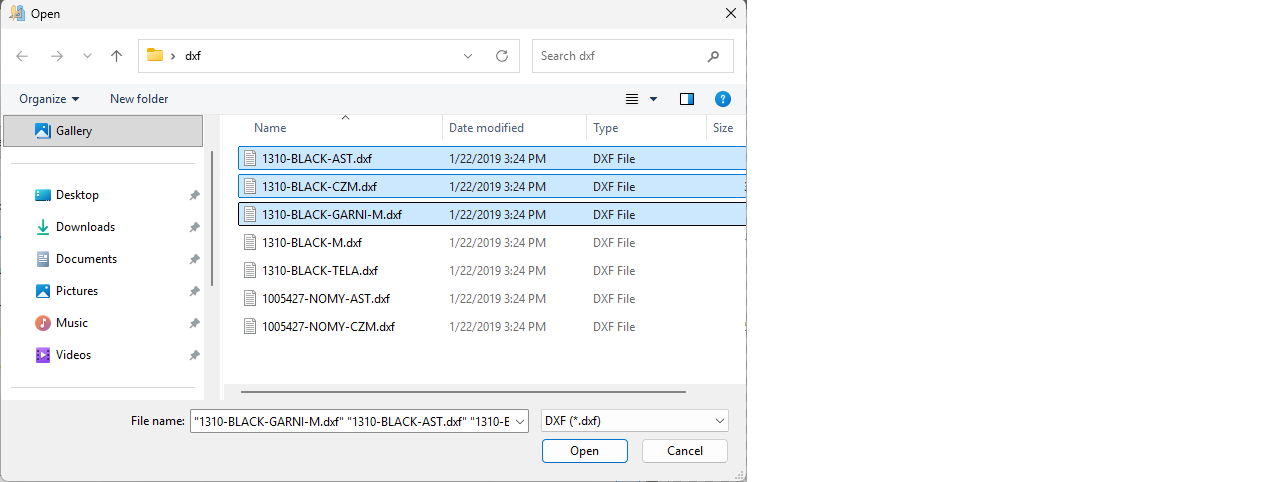
4.) After selecting the DXF file, click Open to add it to the Import DXF window. To select more than one file, hold down the Shift or Ctrl key on your keyboard.
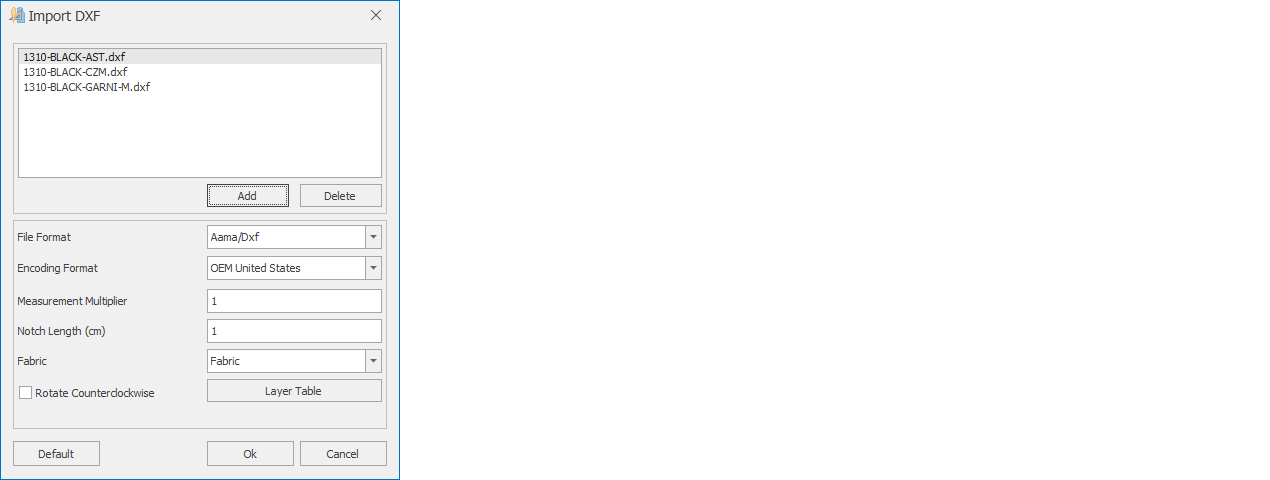
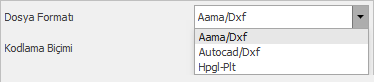
| File Format | Select the format of the file being imported:
|
| Encoding (Character Set) | If necessary, select the character set (encoding) of the imported DXF file. |
| Measurement Multiplier | The scale factor of the imported DXF file can be changed if necessary. For example, if the DXF file was prepared in inches and needs to be converted to centimeters, enter 10 as the factor. |
| Notch Length (cm) | Sets the length of the notches in the imported DXF file. |
| Fabric | If desired, the same fabric name can be assigned to all pieces. |
| Rotate Counterclockwise | If this box is checked, patterns drawn counterclockwise are corrected to clockwise direction. |
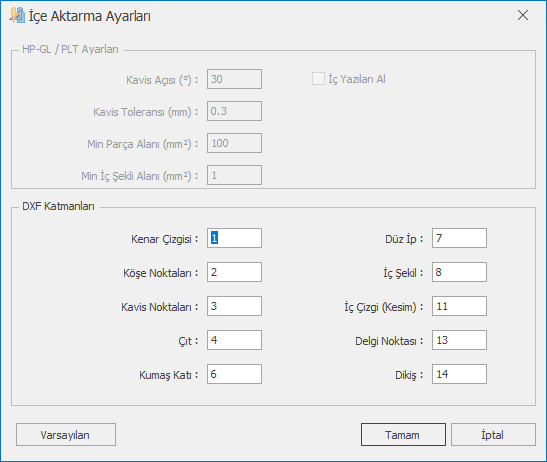
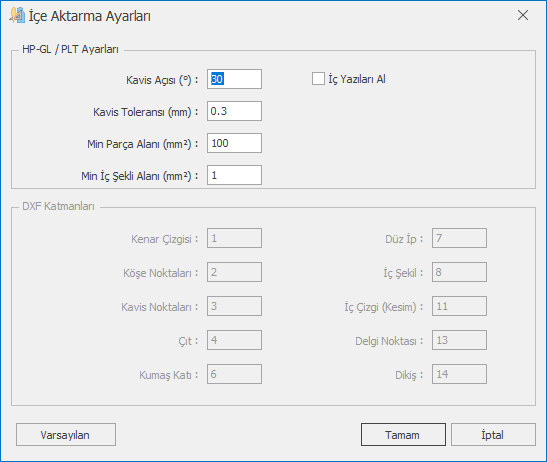
| Settings | Opens the Import Settings window. The window has two sections; one of them becomes active depending on the selected file format. DXF Layers (when the Aama or AutoCad format is selected): enter or correct the layer numbers used in the DXF file for Edge Line, Corner Points, Curve Points, Notch, Mirror Ply, Grain Line, Internal Shape, Internal Line (Cut), Drill Point and Seam.
HP-GL / PLT Settings (when the Hpgl-Plt format is selected):
The Default button resets the values of the active section to their original values; click Ok to save the settings. |
5.) Click the Ok button to import the DXF file.
 The DXF file and its grading file, if any (extension .rul or .txt), must be in the same folder.
If, during import, the number of points in some sizes of a piece does not match the base size, a warning window listing the piece and size names opens at the end of the import. The model is still imported; check the grading of the pieces named in the warning.
PLT / HPGL files contain no grading or size information; the model is imported as a single size. The marker frame is not imported automatically. The Measurement Multiplier, Notch Length and Rotate Counterclockwise settings are applied from the Import DXF window.