Working Over a Network
If the DesignCad software will be used on multiple computers with a shared library, the library structure between the server and client computers must be configured correctly.
During the initial installation, DesignCad automatically creates its default library structure: C:\DesignCad 4.7\Library\Model
If a shared library will be used, one of the computers must be designated as the library server, where all model files will be stored.
The other computers will function as clients and connect to the library located on the server.
 |
With this structure, all users work on the same model files and data consistency is maintained. Client connection settings should not be configured before the sharing process is completed on the server.
|
Sharing the Library on the Server Computer
Open the DesignCad 4.7 folder and then open the Library folder.
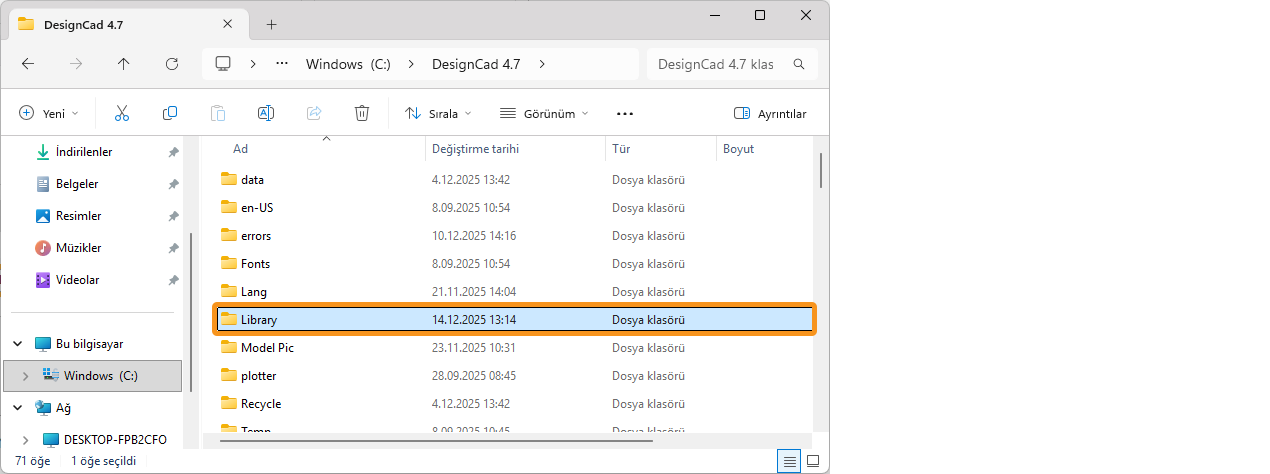
Inside the Library folder, select the Model folder and right-click it. From the menu that appears, click Properties.
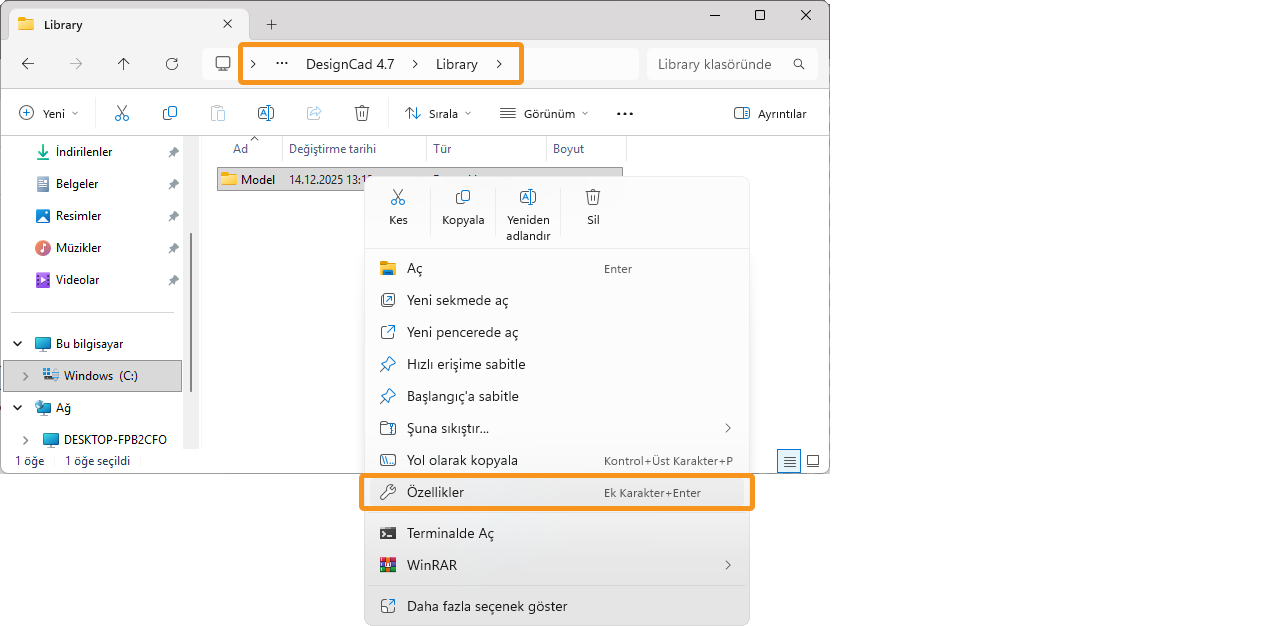
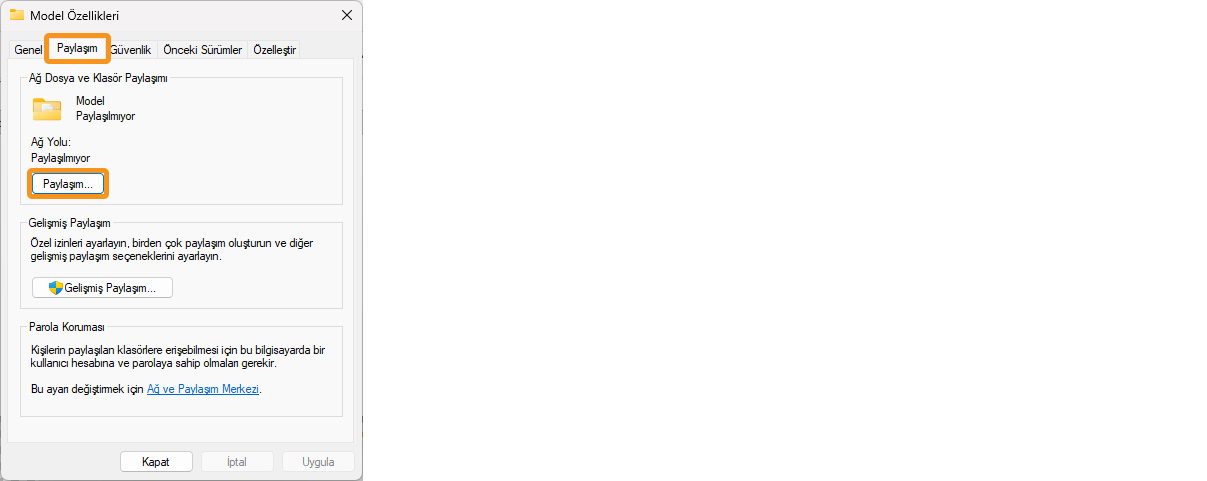
In the Model Properties window, open the Sharing tab.
In the Network File and Folder Sharing section, click Share.
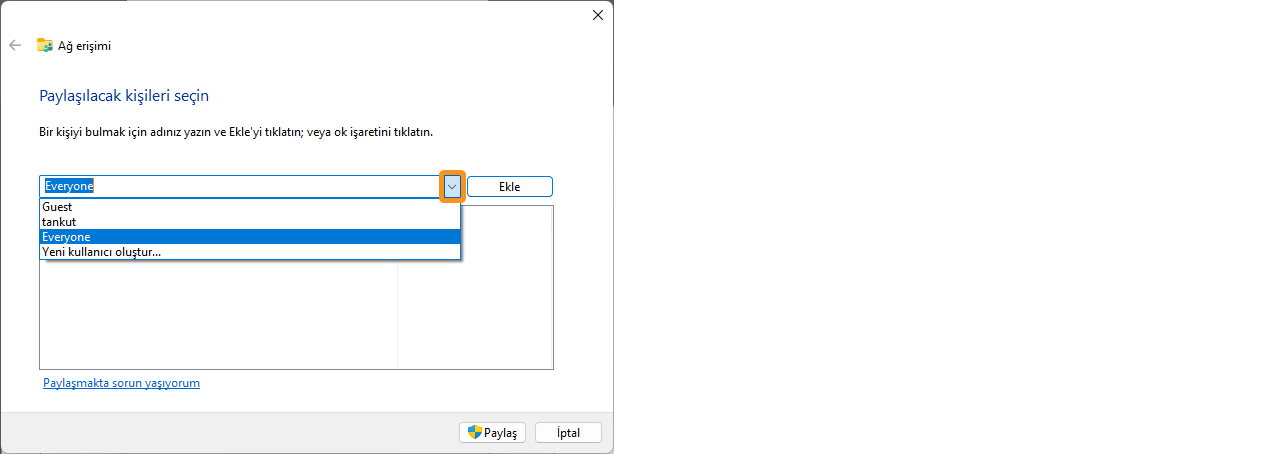
In the Network Access window that opens, click the drop-down arrow next to Add, select Everyone, and click Add to grant access to the Model folder.
Set the permission level for Everyone to Read / Write, then click Share to complete the sharing process.

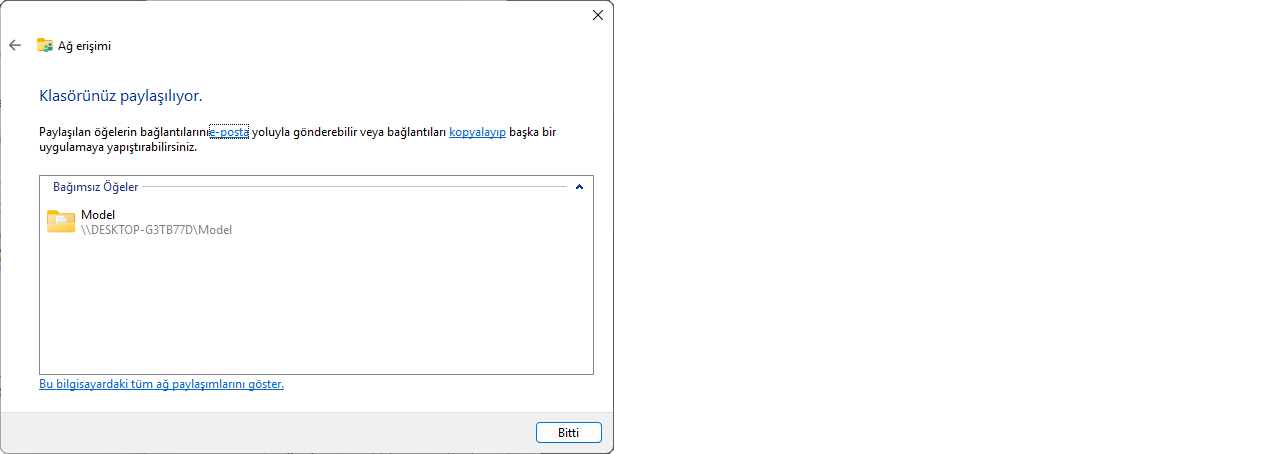
After the Model folder has been shared, click Advanced Sharing from the middle section of the Model Properties window.
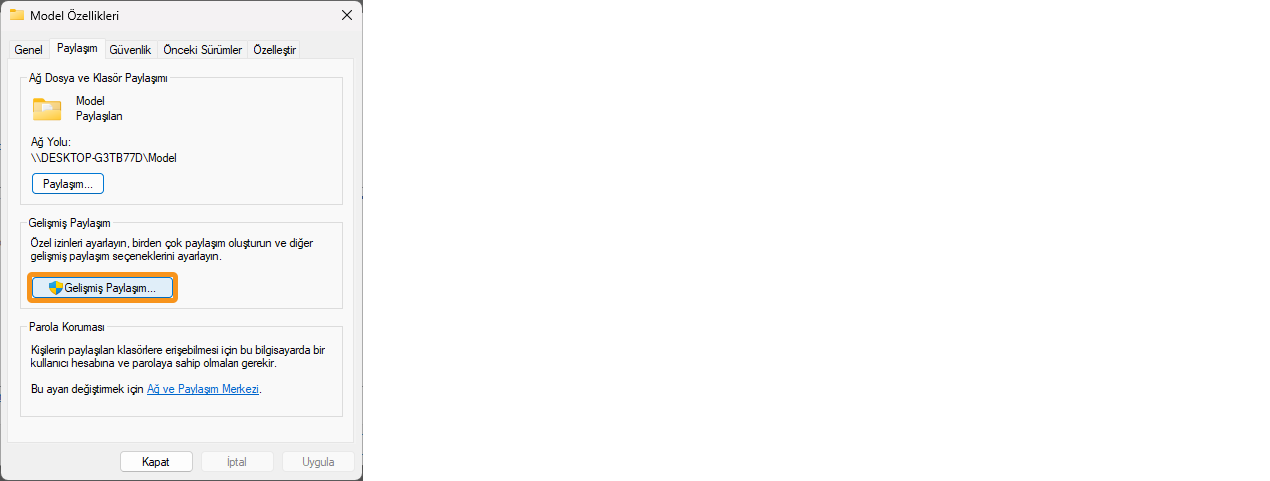
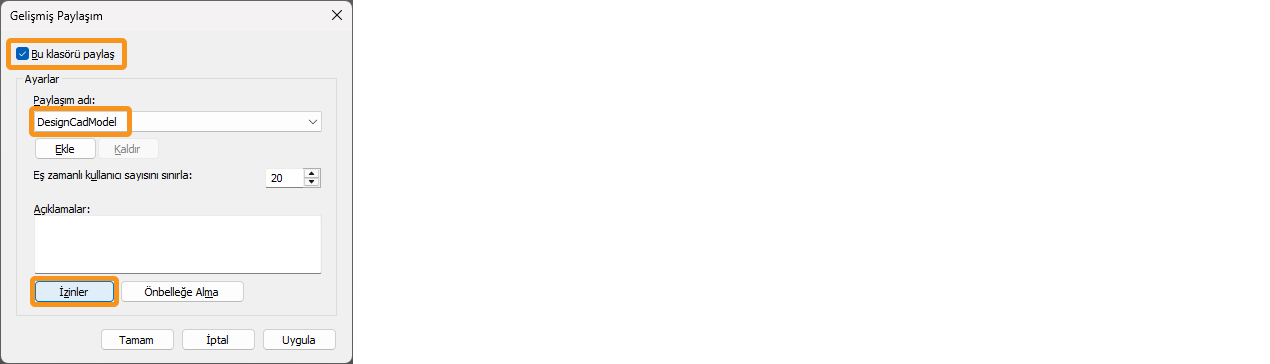
After the Model folder has been shared, click Advanced Sharing from the middle section of the Model Properties window. DesignCadModel
Then click Permissions.
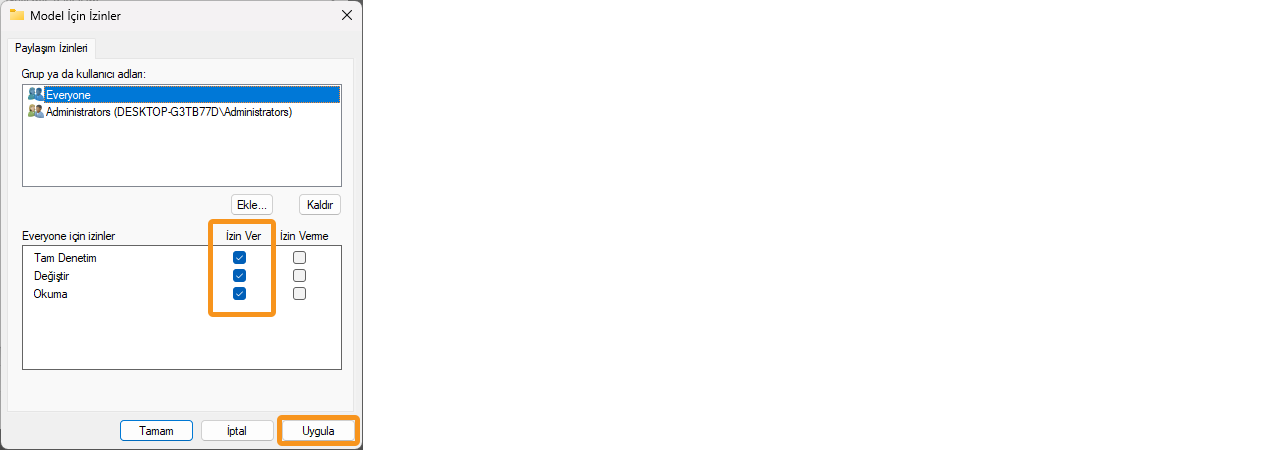
In the Permissions section, allow All Permissions for Everyone, then confirm with Apply and OK.
At the bottom of the Model Properties window, click Network and Sharing Center under the Password Protection section to configure sharing settings.
The Network Settings of the server computer should be configured as shown below.
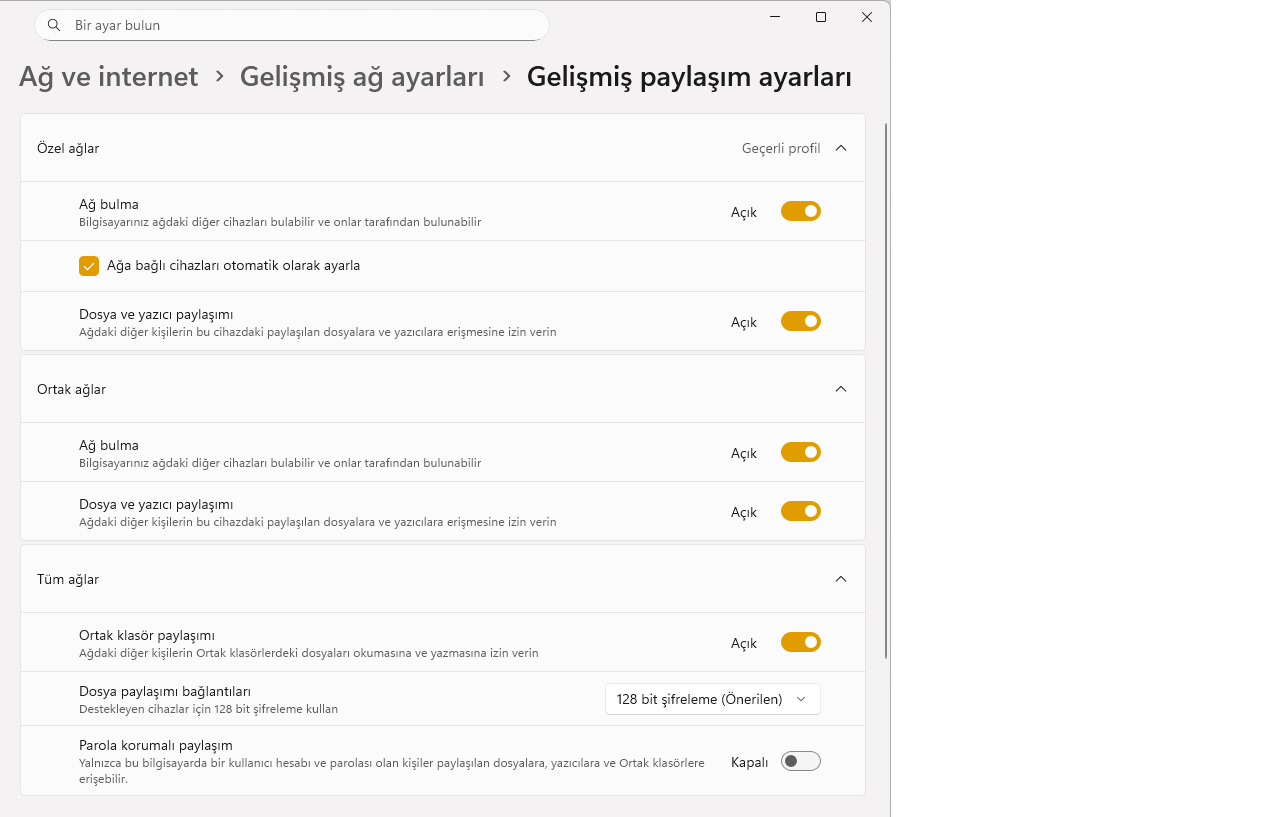
Connecting the Client Computer to the Server
After the sharing process on the server computer is completed, a connection to the shared folder on the server must be created on the client computer using the Windows mklink command.
Before performing this step, ensure that the library path on the client computer is identical to the path on the server.
( default path C:\DesignCad 4.7\Library\Model )
Press Windows + R on the keyboard.
In the window that opens, type: cmd Then press Ctrl + Shift + Enter to run it as administrator.

In the Command Prompt window that opens, type the following command and press Enter.
mklink /D "C:\DesignCad 4.7\Library\Model" "\\MAIN-PC\DesignCadModel"

Explanation of the command: mklink /D → Creates a symbolic directory link (junction)
C:\DesignCad 4.7\Library\Model
→ Local folder path used on the client computer\MAIN-PC\DesignCadModel
→ Shared network folder located on the main server
If the operation is successful, a message similar to the following will appear:
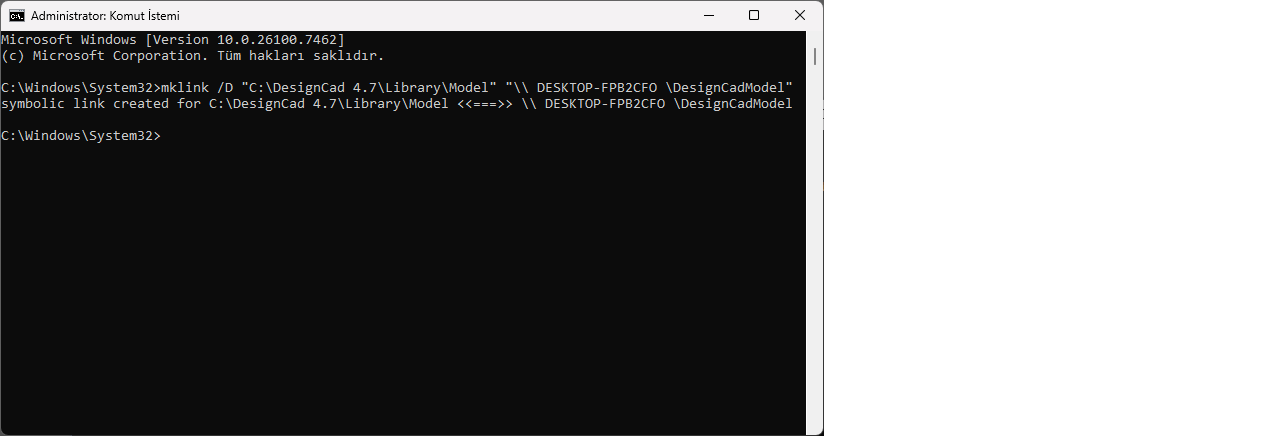 symbolic link created for C:\DesignCad 4.7\Library\Model <<===>> \\MAIN-PC\DesignCadModel
This message indicates that the Model folder on the client computer is now linked to the shared folder on the server.
Disconnecting the Link
To remove the connection, open Command Prompt as Administrator and run the following command:

rmdir "C:\DesignCad 4.7\Library\Model"
This command removes the symbolic link between the client computer and the server library.