DesignCad
- Started
- What's New V.4.7
- Getting Started
- Home Screen
- Dxf Send/Receive
- Model Design
- Point Operations
- Grading
- Pieces Operations
- Plot Piece
- Print Piece
- Measurement
- Sewing Processes
- Dart/Pleat Operations
- Internal Shape / Internal Point
- Marker Operations
- Marker Print
- Super Marker
- Technical Card Operations
- Cost
- Plot Marker
- Options
Sewing Corner Operations
It allows assigning different folding properties to the start, end, and corner points of a seam.
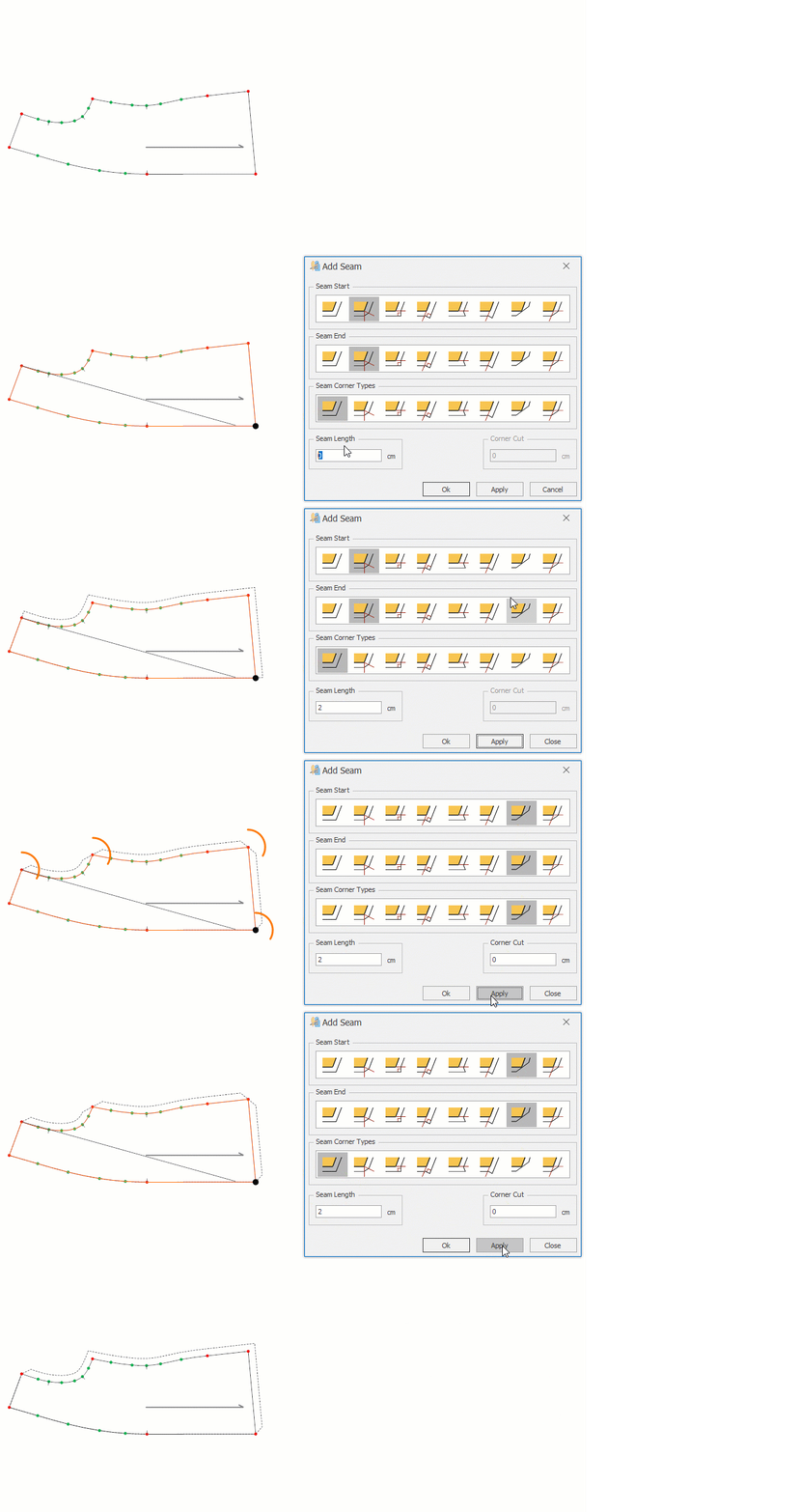
In the Add Seam window, which opens during the Add Seam to Piece process, the seam corner type is selected for the start, end, and intermediate points of the seam.
Before confirming the seam, it can be checked with the Apply button in the Add Seam window, and then confirmed by clicking the Ok button.
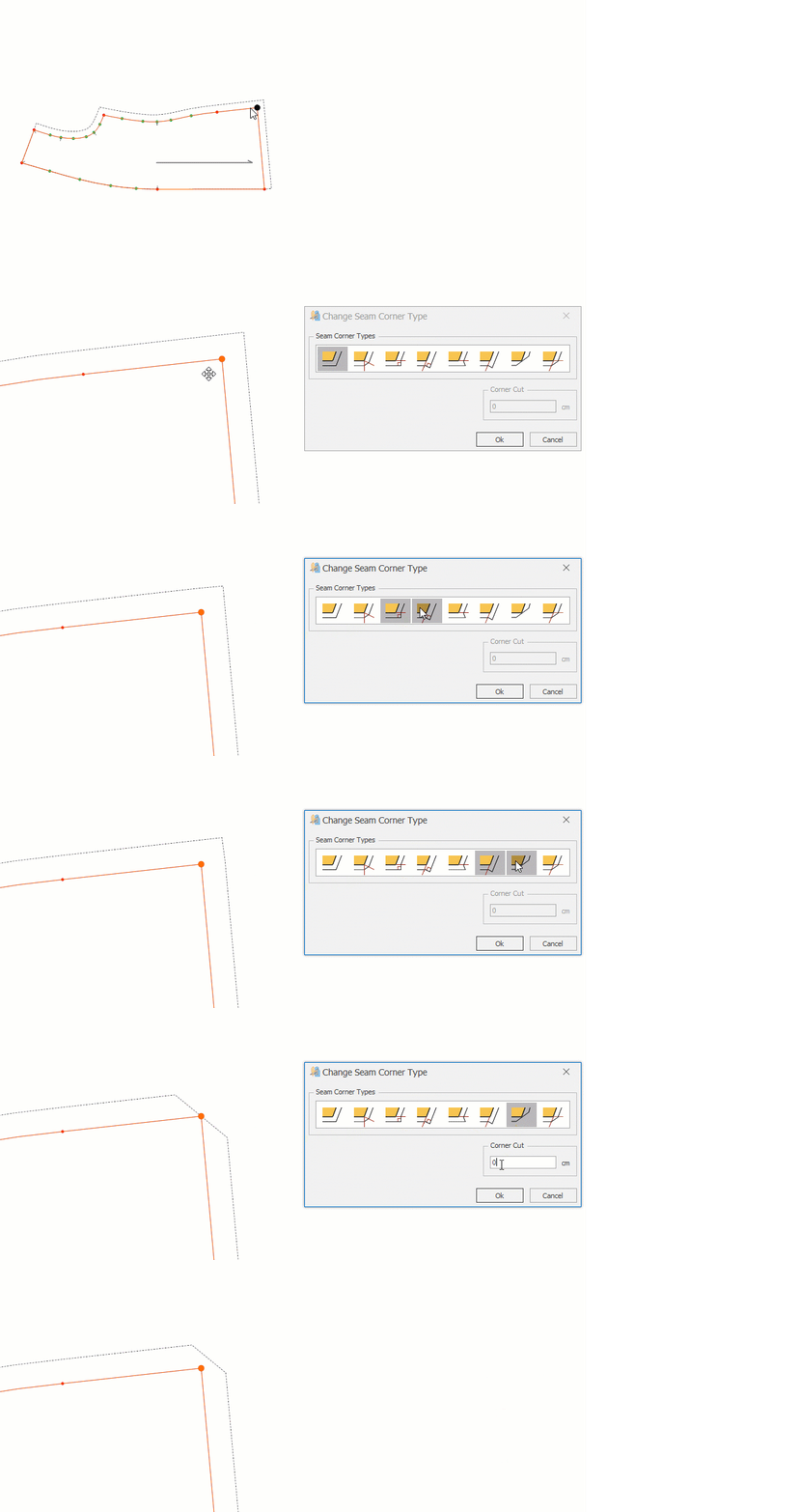
In a piece with an assigned seam, the seam corner can be modified later if needed.
- From the Seam menu, click the Change Seam Corner Type icon

- Select the seam point whose corner will be changed by clicking with the mouse.
- After selecting the desired corner type, confirm by clicking the Ok button.
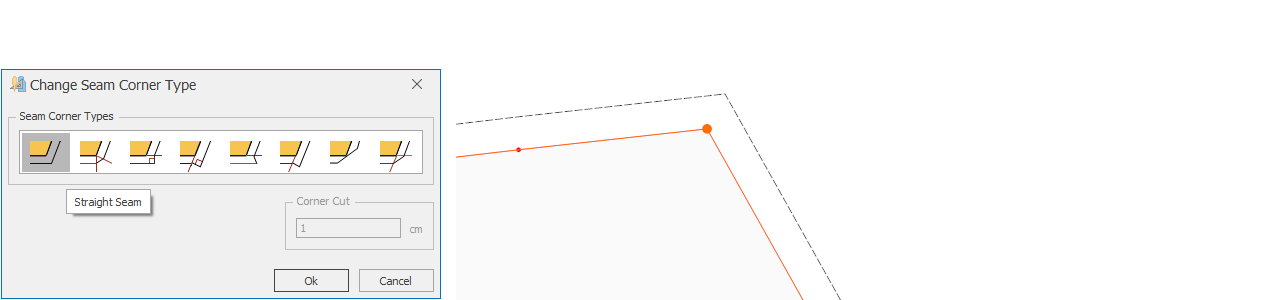
 Straight Seam: Seam with equal allowances on both sides of the line.
 Joined Seam: The intersection of two seams meeting at a corner point, where the incoming and outgoing lines form a right angle.
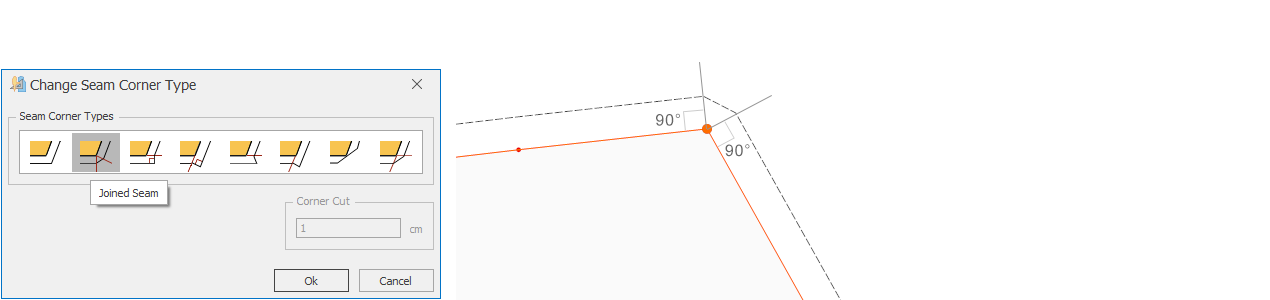
 Sew After Seam: The intersection of two seams where the outgoing line forms a 90° angle with the piece outline, while the incoming line follows the normal seam direction.
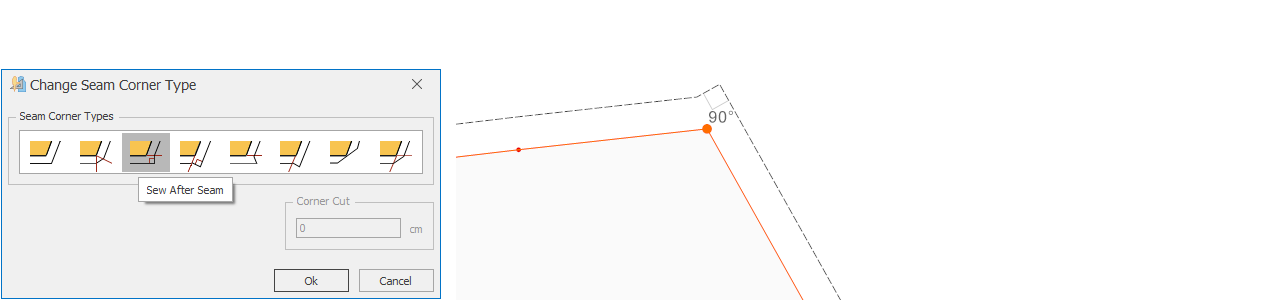
 Sew Before Seam: The intersection of two seams where the incoming line forms a 90° angle with the piece outline, while the outgoing line continues as a regular seam line.
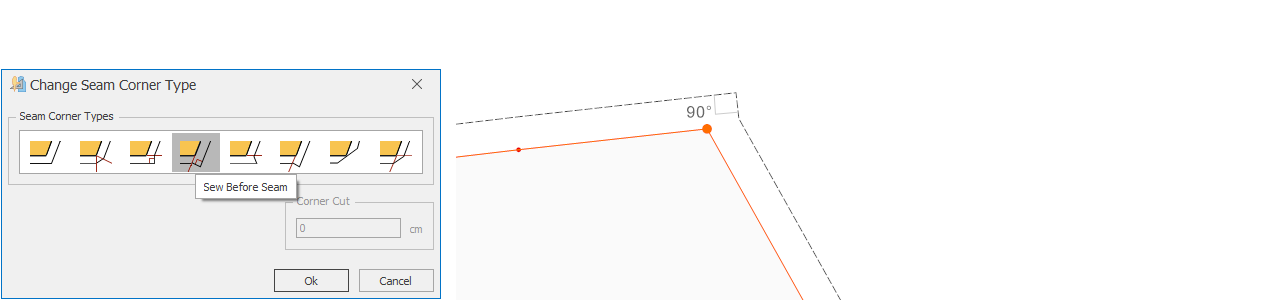
 Fold After Seam: A seam where the incoming line is folded onto the outgoing line.
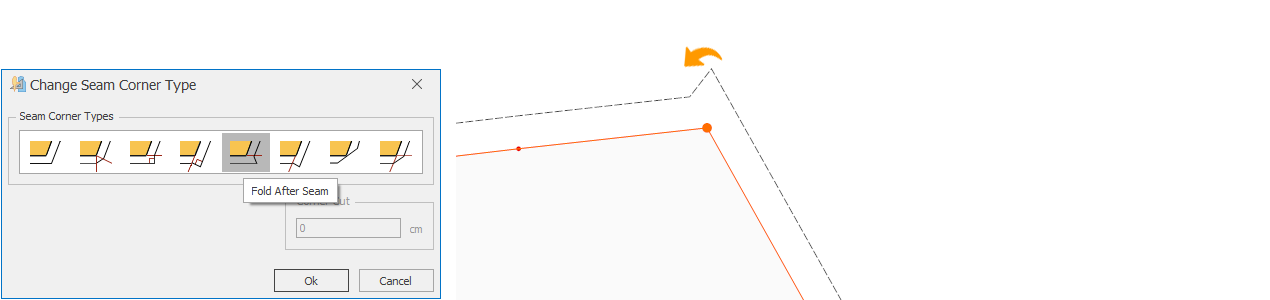
 Fold Before Seam: A seam where the outgoing line is folded onto the incoming line.
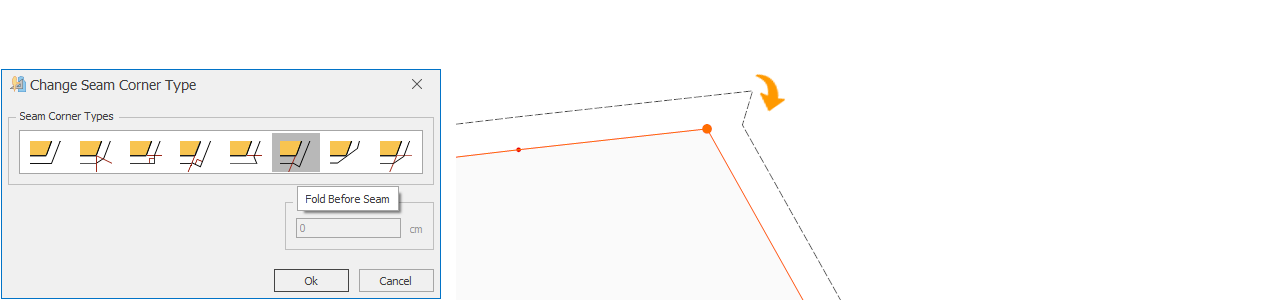
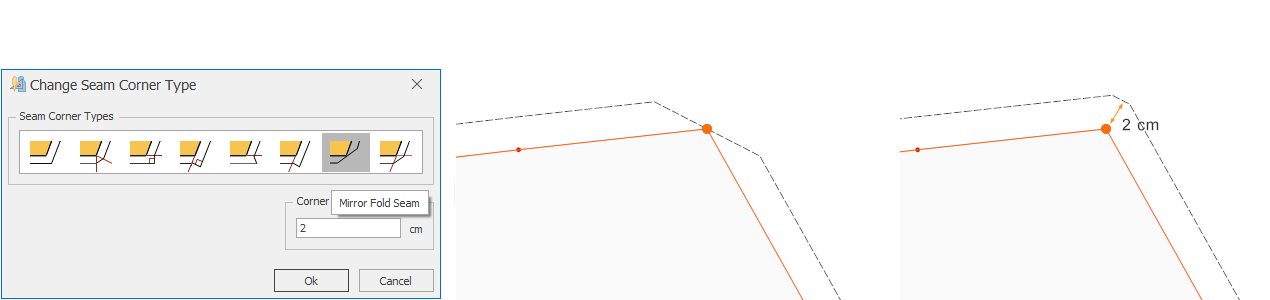
 Mirror Fold Seam: A seam where the incoming and outgoing lines overlap each other. In this corner type, if desired, the Trim from Corner box can be activated, and a value can be entered to extend the cutting line (e.g., 2 cm).
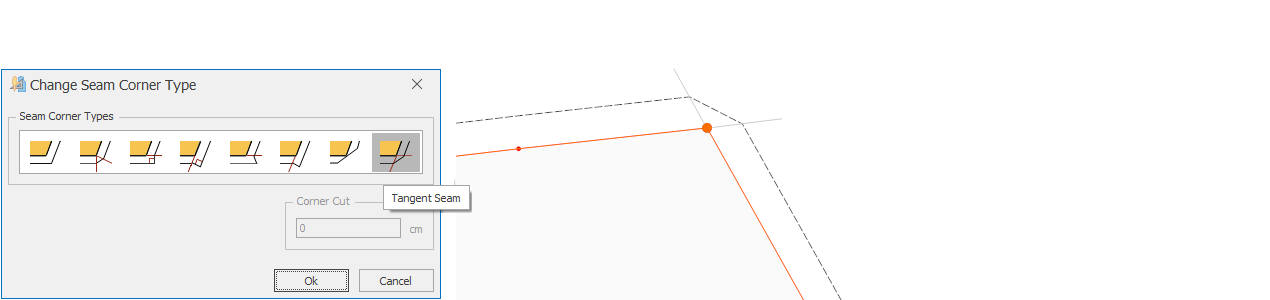
 Tangent Seam: A joined seam formed at the intersection points, running parallel to both the incoming and outgoing lines.