DesignCad
- Started
- What's New V.4.7
- Getting Started
- Home Screen
- Dxf Send/Receive
- Model Design
- Point Operations
- Grading
- Pieces Operations
- Plot Piece
- Print Piece
- Measurement
- Sewing Processes
- Dart/Pleat Operations
- Internal Shape / Internal Point
- Marker Operations
- Marker Print
- Super Marker
- Technical Card Operations
- Cost
- Plot Marker
- Options
DXF/Aama Export
DXF is a common file format that allows models and patterns to be exchanged between different systems.
The DXF format is used to send a model file created in DesignCad to other CAD software.
Follow these steps:
1.) Open the model to be exported as DXF in the Pattern Design screen.
2.) In the Pattern Design screen, click Send > DXF in the File menu.
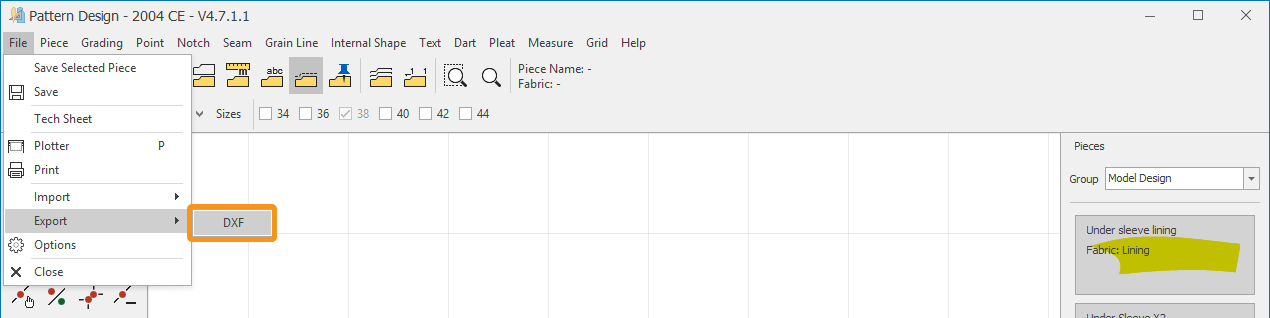
The Export DXF window opens.
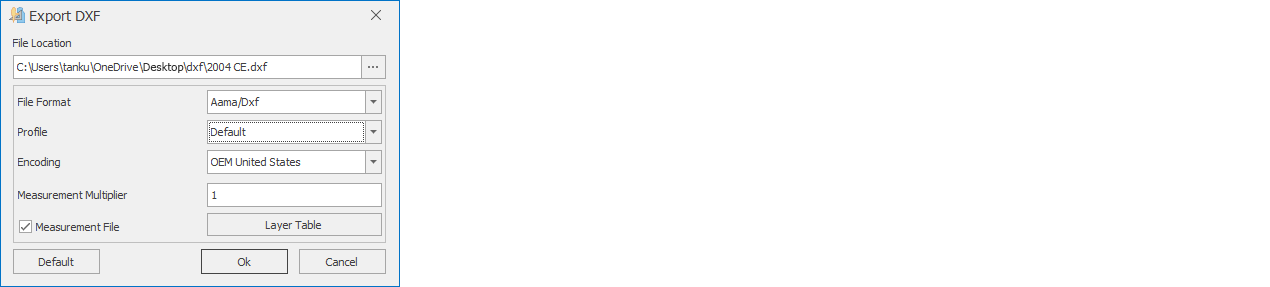
| File Location | Select where the DXF file will be saved. Click the three dots at the right of the row and choose the target folder in the window that opens. |
| File Format | Select the format in which the DXF file will be saved:
|
| Profile | You can change the profile settings of the exported Aama/Dxf file.
|
Encoding (Character Set)
| If necessary, set the character encoding of the exported DXF file. |
| Measurement Multiplier | If necessary, the scale factor of the exported DXF file can be changed. For example, if 10 is entered as the multiplier, 1 cm is saved as 10 cm in the file. |
| Layer Table | A table showing the layer values used for the Aama/Dxf export. If necessary, these layer values can be changed for the file being prepared. In the window that opens, layer numbers can be changed in the DXF Layers section; Default restores the original values.
|
| Measurement File | If a grading (rule) file should also be created with the DXF file, check this box. In addition to the DXF file, a grading file containing the grade rules is then created. This file is saved as "file name.rul".
|


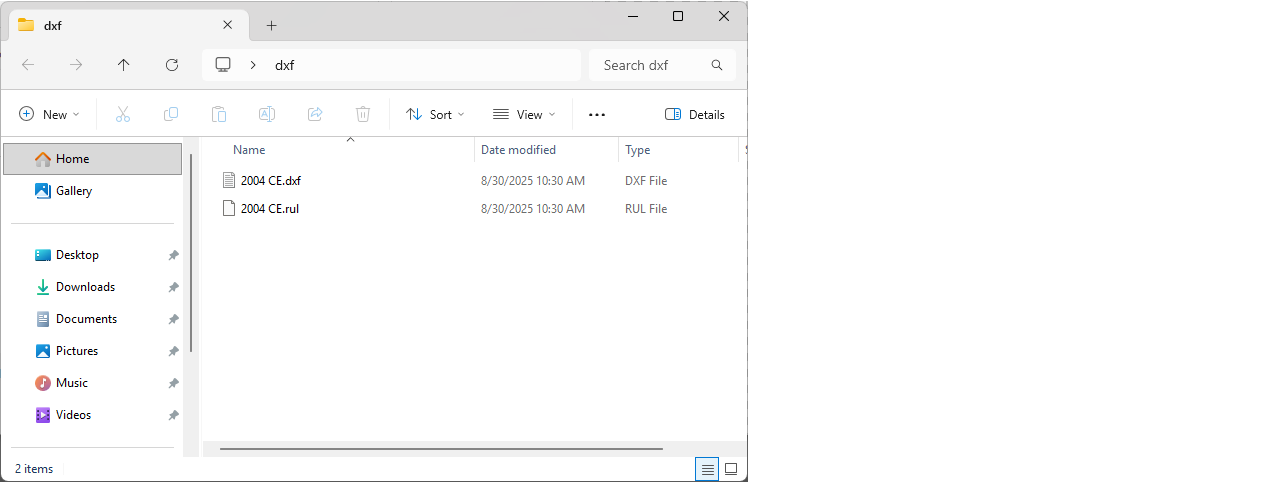
3.) Click Ok to create the DXF file.